
Adding and connecting client tenants
Onboard a Microsoft 365 or Google Workspace customer in minutes, activate the connection, and remove a tenant cleanly.
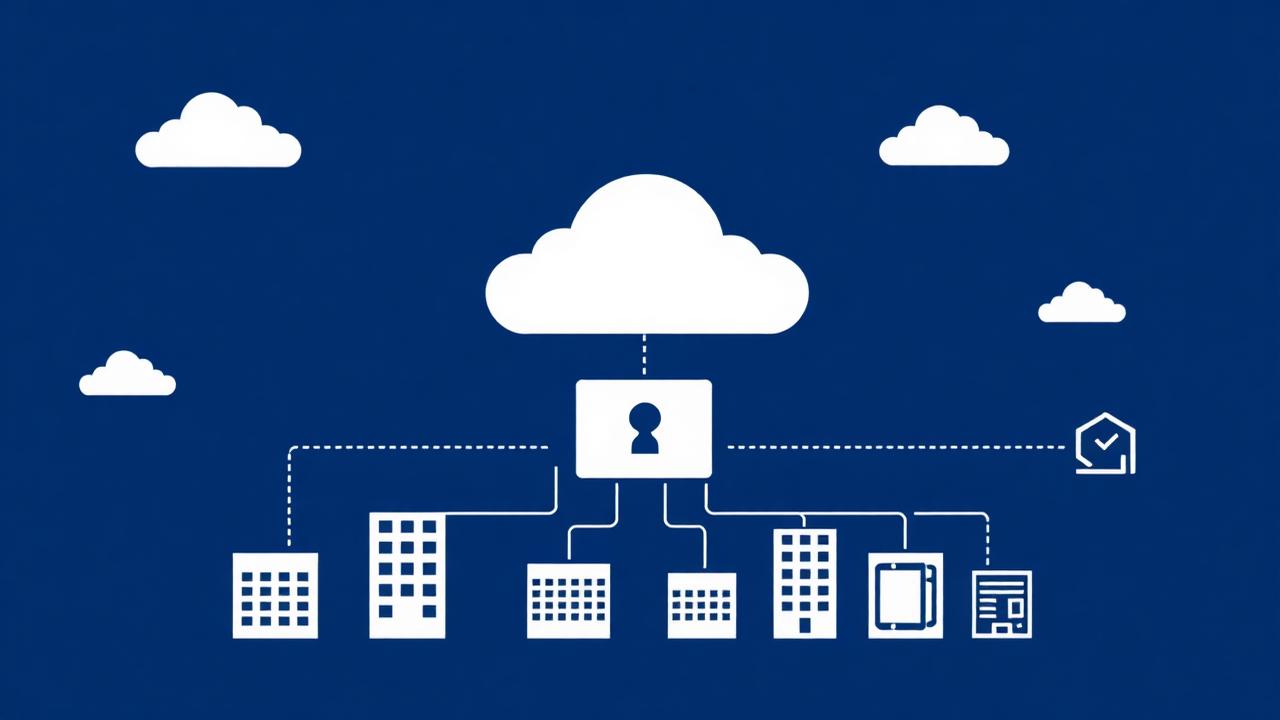
Add a tenant
A tenant is one customer's email environment. You can add as many as you need; each connected tenant counts as a billable seat.
- 1Go to Client tenants and click Add tenant.
- 2Enter the client's display name and primary email domain.
- 3Pick the provider: Microsoft 365 or Google Workspace.
- 4Save. The tenant appears with the status Awaiting credentials.
Connect Microsoft 365
RadarX reads mail through the Microsoft Graph API using an app registration in the client's Entra ID tenant. Supplying the tenant's own credentials means the connection is live as soon as admin consent is granted — there is no waiting period.
- 1In the client's Azure portal, register an application and note the Directory (tenant) ID, Application (client) ID and a client secret value.
- 2Grant the application permissions Mail.Read, User.Read.All and Directory.Read.All, then click Grant admin consent.
- 3Back in RadarX, click the tenant, choose Connect, and paste the tenant ID, client ID and client secret.
- 4Save. The status changes to Connected and the tenant is immediately eligible for scanning.
Connect Google Workspace
Google tenants use a service account with domain-wide delegation so RadarX can read mailboxes on behalf of users.
- 1Create a service account in Google Cloud and generate a JSON key.
- 2In the Google Admin console, add the service account client ID under domain-wide delegation with the Gmail read-only and Directory read-only scopes.
- 3In RadarX, click Connect on the tenant and paste the service-account JSON plus an admin email to impersonate.
- 4Save and confirm the status is Connected.
Admin portal launch
Each tenant can also store the client's super-admin portal credentials. Clicking Launch opens the provider's admin portal in a new tab with the username pre-filled, and RadarX displays a live TOTP code if you have stored the MFA secret.
Turn on Force re-auth on every launch so the previous client's session is cleared before the next one opens. This prevents you from acting inside the wrong tenant.
Remove a tenant
Deleting a tenant removes its mailboxes, messages, threats and alerts, and releases the billable seat.
- 1Open the tenant row and choose Delete.
- 2Confirm in the dialog. The action cannot be undone.